
midi
Table of Contents
Enabling MIDI
- Start LoopMidi (should run on startup)
- Gamepad to MIDI should run on startup
- Start MIDI Ox (should run on startup but may need to be restarted)
- Make sure Midi Ox VJ or xbox preset is active
- Check seeing MIDI signal
In MIDI Ox, click green MIDI plug icon to see port activity. Shows input and output ports, press a key, check which are active. Is it always “controller in” “MIDIBridge Out”?
In MD3
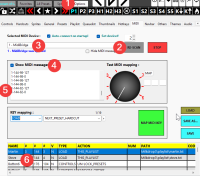
- options > MIDI
- rescan
- choose MidiBridge
- seeing MIDI messages?
- make sure Device # matches 1st digit in MIDI messages
- make sure 1st # column also matches - should change with Device # setting

In MMV
- make sure Input sources window is visible
- add a new source and give meaningful name (or select source)
- make sure the source is pointing to the MIDI Out port (MIDIBridge?)
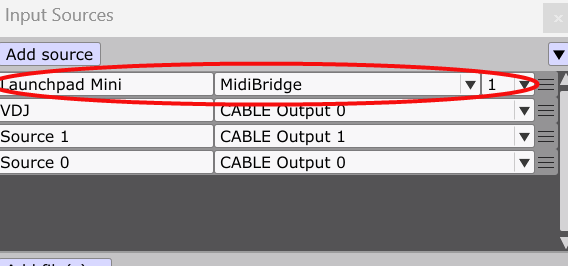 3. Whichever parameter is using MIDI it must connect to the named source (LaunchPad Mini in example)
In Resolume
- Top menu: avenue > Preferences > MIDI
- refresh
- open monitor
- make sure correct device is selected and MIDI Input is active
- test MIDI messages
- close preferences
- top menu: shortcuts > edit MIDI or Ctrl+Shift+M to enable MIDI overlay
- select button/knob/parameter
- press MIDI key
- if turning knob, change the mode to relative


Windows Desktops
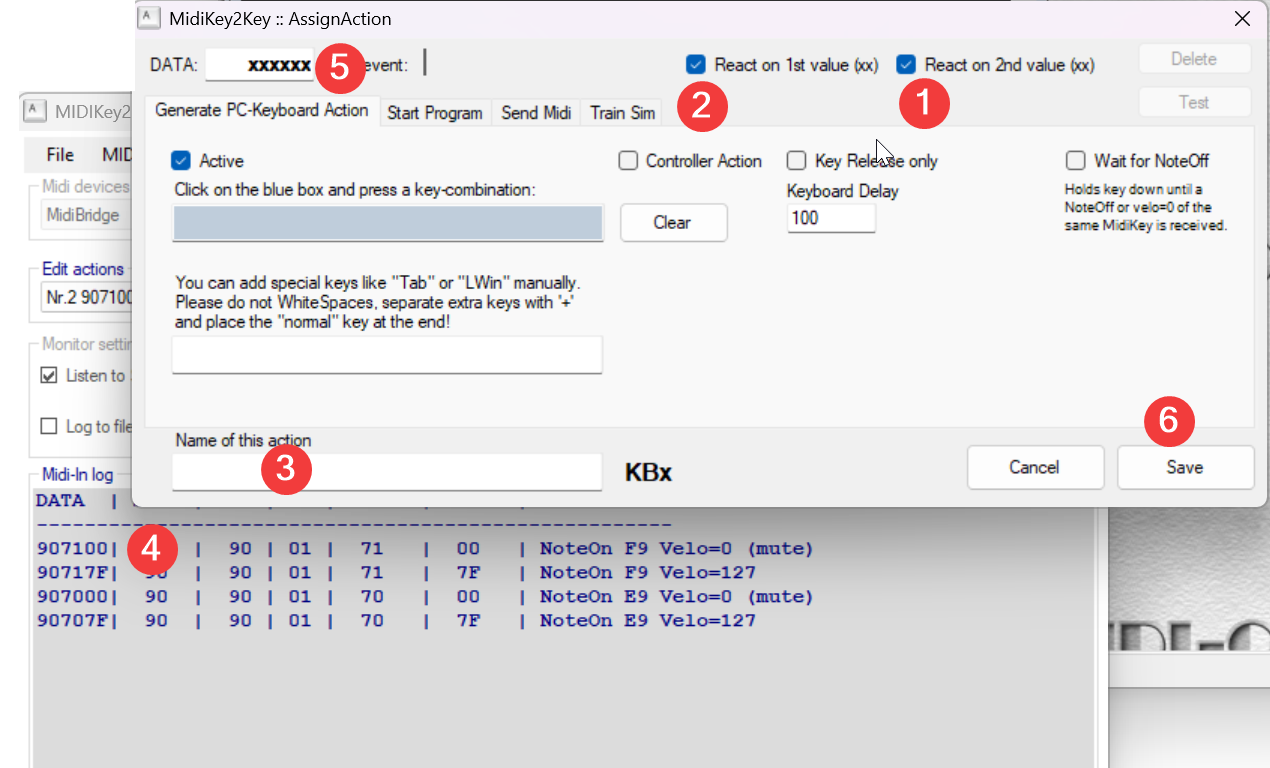
start MIDIKey2Key
- Make sure #1 is checked - it needs to get values from 1st and 2nd pair in #5
- this should already be checked
- give it a meaningful name
- get the value from the DATA column after pressing key e.g. 907100 (hmmm, does it need the final 2 digits?)
- insert them
- save
- don't forget to add the action e.g. Control+LWin+Left, in the box above #3
TouchOSC - Tablet
- Start TOSC Bridge on PC
- Start TOSC on tablet
- Go to edit screen
- Click connections
- Go to Bridge section
- Browse
- Select connection (SteveD?)
- Check in Protokol - don't forget to enable MIDI
- In MIDI Ox
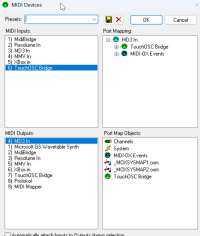
- Check MIDI being received
- In MD3
- Options tab
- MIDI section
- Enable MIDI messages
- Make sure Device # matches 1st digit in MIDI messages
- Make sure 1st # column also matches - should change with Device # setting
midi.txt · Last modified: by 115.186.234.12